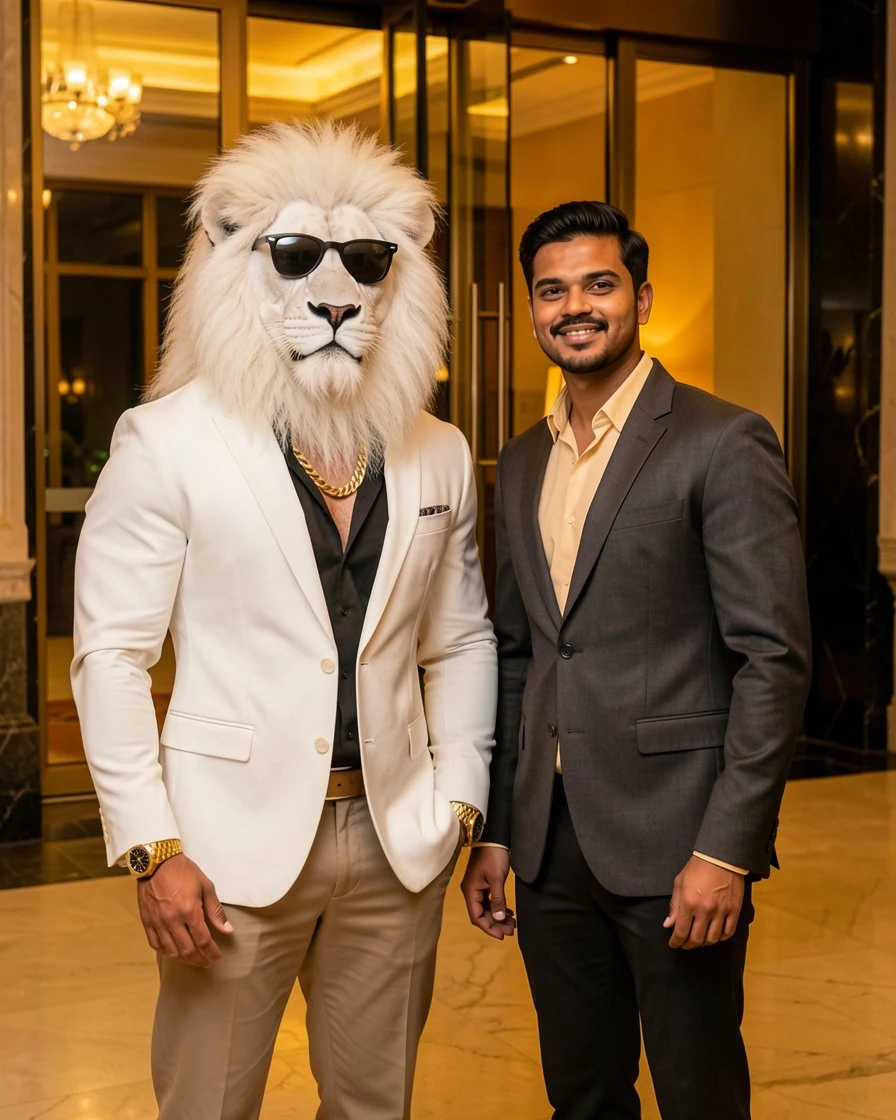
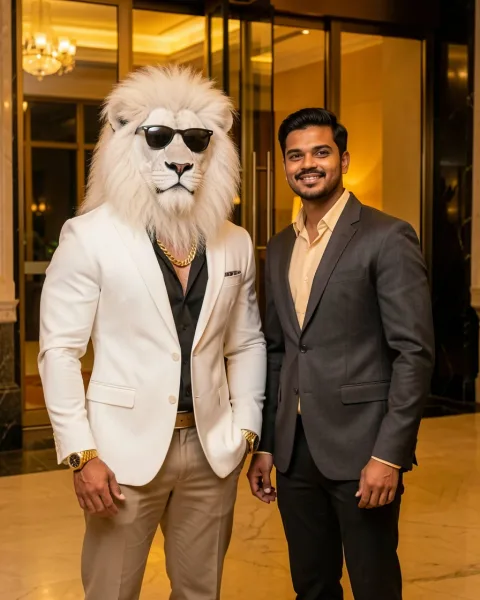
Choose the hotel scene when you want an indoor portrait with a luxury atmosphere. This is a useful starting point for a profile picture, a casual social post, or a comparison with your original selfie. Keep your source photo simple so your face is easy to identify against the new setting. After generation, look at the lighting on your face and the lion, then check that their placement feels consistent with the room. Use the sample as a guide to the overall mood, while remembering that each generated result can differ in pose, clothing and details.
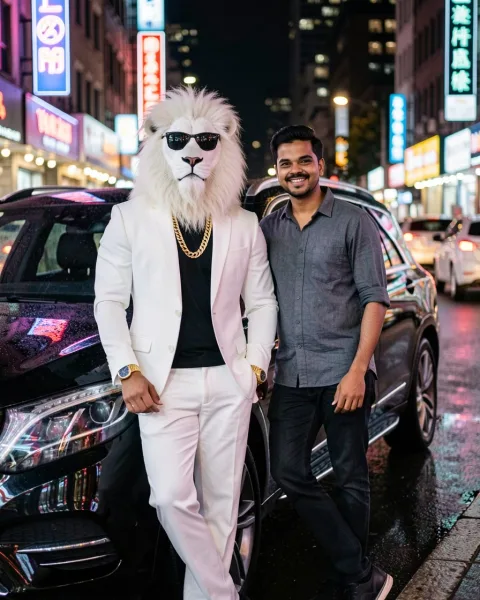
The supercar scene pairs the white-maned lion concept with an automotive backdrop. Try it for a playful lifestyle post, a creative avatar, or an image to send to friends. A clear portrait gives the model a less ambiguous facial reference than a distant full-body photo. When reviewing the output, check reflections, the shape of the car, and any hands or accessories as well as the face. AI can invent details in these areas. Pick the image because you like its composition and mood; the generated car and location should not be presented as proof of ownership or a real event.
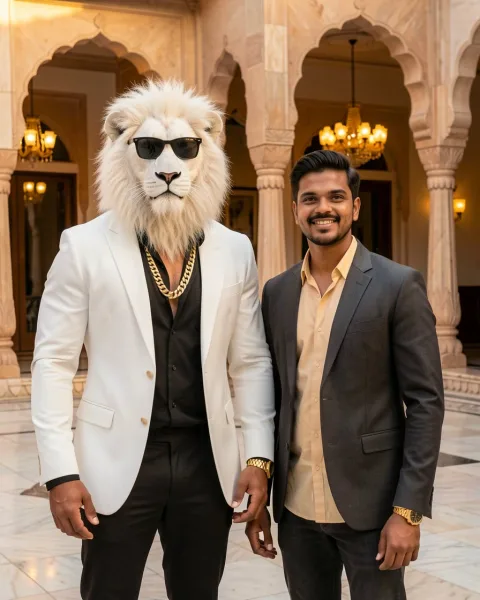
Choose the palace scene for a grander Sheru Bhai photo with an architectural setting and a dramatic atmosphere. It suits an imaginative portrait collection or a themed social post where the setting is part of the story. Before you generate, use the example to decide whether you prefer this mood to the hotel or supercar options. Once the image is ready, inspect facial details, body proportions and the surrounding architecture. Decorative patterns may be invented or uneven. Save the version you enjoy and describe it as AI artwork when sharing so viewers understand how the picture was made.
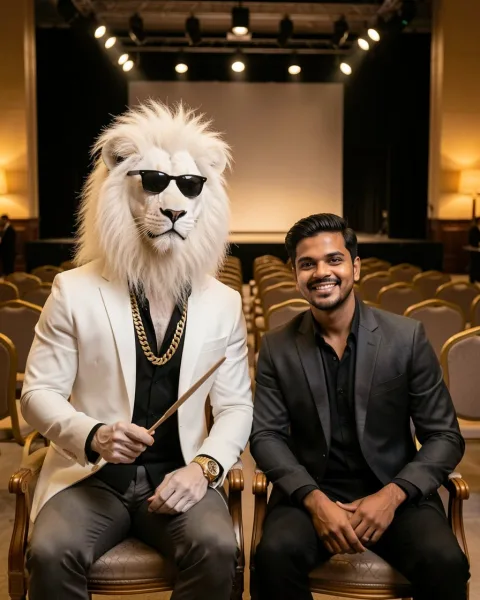
Use the auction scene when you want a story-driven image with a clear role for both subjects. Sheru holds the bidding paddle while you sit beside him in the front row. Check the paddle, hands, chair lines and stage lights before sharing. The setting is fictional and should not be presented as proof of a real auction, purchase or celebrity event.
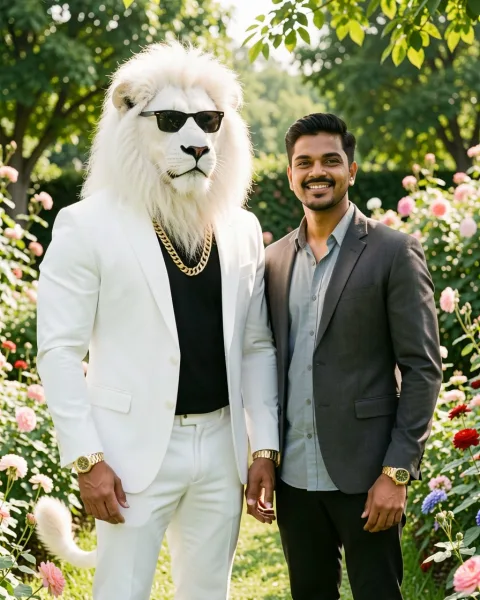
The garden scene is the easiest choice for a bright, friendly portrait that works for almost any age or outfit. Soft daylight should reach both faces, while flowers and leaves stay softly out of focus. Look for merged hands, repeated flowers, stray text and uneven facial lighting before you download.
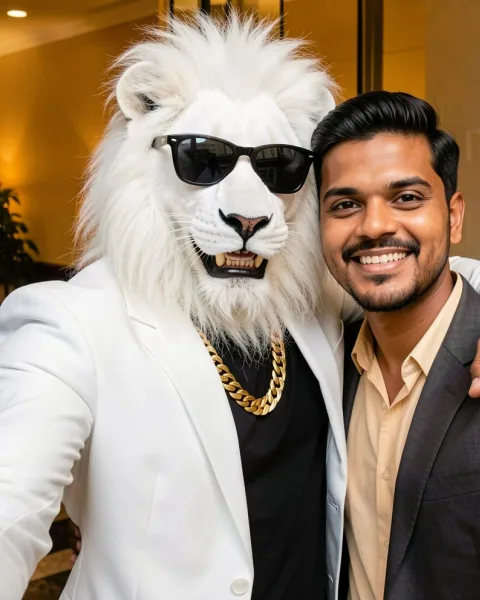
The selfie scene brings both faces closer to the camera. It is useful for a playful profile image or a social post, but it leaves less room for errors. Check that both faces are fully visible, not merged, and that the phone-camera distortion still looks natural. Use a sharp source selfie and keep the framing simple.
Before your close-up.
No prompt needed. Bring a clear selfie, choose the mood, then look closely before you keep the frame.
The quick check
File
JPG, PNG or WebP · up to 8 MB
Face
One person, eyes visible, even light
Crop
Keep the full head in frame; skip heavy filters
01
Start with a clear facial reference
One face, straight on, softly lit. Skip sunglasses, deep shadows and heavy filters.
Read the full guidance
Upload a still JPG, PNG or WebP file smaller than 8 MB. Choose a photo of yourself with one clearly visible face, even lighting and enough detail around the eyes, nose and mouth. Avoid heavy beauty filters, sunglasses, deep shadows or a crop that cuts off much of your head. A group photo can make it unclear which person should appear in the result. If the source already looks blurred on your screen, try a sharper original instead of enlarging it. Only upload photos you have permission to use, and read the privacy policy if you need details about how uploaded images are handled.
02
Review the whole image before keeping it
Check the face, but also the hands, teeth, clothing edges and the lion’s proportions.
Read the full guidance
AI portraits can preserve some features while changing others. Compare the generated face with your selfie, then look at the eyes, teeth, fingers, clothing edges and the lion’s proportions. Check the background too: text, architectural details and reflections may look convincing at first glance but become inconsistent when viewed closely. If a result is not what you wanted, a clearer selfie or another scene gives you a different starting point. A completed generation uses a credit even when the artistic result does not match your preference; the automatic credit return described below applies to failed or timed-out jobs.
03
Download and share with context
Keep the original download, check the platform crop, and say that the image is AI-made.
Read the full guidance
Download a finished portrait you want to keep before leaving the page, and check how it looks in the crop used by your social platform. A square profile picture may hide parts of the lion or scenery that are visible in the full image. For a post, a short caption explaining that this is an AI-generated Sheru Bhai portrait helps people interpret it correctly. Use the photo guide to compare scenes and the prompt library to explore descriptions for other tools. For additional generations in this studio, check the pricing page for the current one-time credit packs and choose the amount that fits your plans.
Yes. Try one photo per IP without signing up. After your first photo, create an email account to keep going. Eligible new accounts receive 3 credits once; changing accounts does not reset free allowances.
02How much does a photo cost?
One photo uses one credit. Packs are $4.99 for 30 credits, $9.99 for 70 credits, and $19.99 for 160 credits. All are one-time purchases.
03What if a generation fails?
Failed or timed-out jobs return their credit automatically. A job that takes longer than 90 seconds is stopped and refunded.
04Will the result look exactly like my selfie?
Your selfie guides the face, but AI can change facial details, clothes or proportions. Review the result before sharing.
05What happens to my uploaded photo?
Your re-encoded upload is stored privately for up to 24 hours. Generated photos are kept for up to 30 days. Delete your photos at any time from My studio. We do not use your photos to train models.
06What is the Sheru Bhai photo trend?
The Sheru Bhai photo trend is a viral AI editing format that places a person beside a suited, white-maned Sheru Bhai character in a cinematic scene. You upload a selfie and choose one of six settings: hotel, supercar, palace, auction, garden or selfie. The result is an AI-generated creative image, not a real photograph with a lion, and it should not be presented as evidence of an actual animal encounter.
07Do I need a Sheru Bhai photo prompt?
No prompt is needed for the homepage tool: upload your selfie and select one of the available scenes. If you want to try the concept in a separate AI image generator, visit the prompt library for example descriptions. Those prompts are intended for use in other tools and do not add a custom prompt field to this studio. Results depend on the tool, model, source image and settings you use.
08Can I use the result as a profile picture?
You can download your generated image and crop it for a profile picture or a social post. Check the face at a small display size and make sure the crop keeps the details you want. Follow the platform’s rules and label AI-generated content where required. Avoid presenting the image as evidence of a real location, possession or animal encounter. Review the site’s terms before using a result for a commercial project.
09Can I make a single Sheru Bhai photo?
Yes. A Sheru Bhai photo single means one image from one selfie. Upload one photo and generate one image at a time. Eligible visitors can try one photo free; additional generations use credits, so you do not need to create a whole batch to test the trend.
010What does a Sheru Bhai photo image include?
A Sheru Bhai photo image usually includes one human from the uploaded selfie, one upright white lion-headed Sheru Bhai character, and a cinematic setting such as a hotel entrance, supercar street, palace staircase, auction room, garden or close-up selfie. The result is an AI-generated creative portrait, not a real event photo.
011Is it Sheru Bhai, Sher Bai photo or Sherubhai photo?
Sheru Bhai is the main spelling used here. Sher Bai photo and Sherubhai photo are common search variants and misspellings for the same trend. The generator and prompt examples work the same way regardless of which spelling brought you here.
012Is the Sheru Bhai photo trend still popular?
The trend has cooled from its peak but still has steady search interest. This page focuses on the practical “how do I make my own photo” intent, so you can create a single image without following the daily trend cycle.
013Can I download a 4K Sheru Bhai photo?
Yes. New 9:16 portraits include a 1080 × 1920 JPEG and a separate upscaled 2160 × 3840 vertical JPEG, at no extra credit cost.
Your scene is waiting.
A little cinematic energy. A very big white-maned lion.